
Removal.AI Bulk Background Remover for E-Commerce: Full Guide
One product photo can turn into a dozen files before it goes live. And a single wrong background can get your whole listing pulled from marketplaces.
Most shoppers never see the work behind a product page. Every ad, email, and social post eventually sends them to the same place: the listing.
This is where the main image does most of the convincing in a split second. If that image looks off, or doesn’t match what they saw elsewhere, the sale gets harder.
Getting that image right takes more work than most people see. A single listing often needs 8 to 12 images, and each one gets resized, checked, and approved again for every channel.
This guide shows you how to cut that repetitive work with a bulk background remover for ecommerce. You’ll get a step-by-step workflow, results from a real 100-image test, each channel’s image rules, and a spec table to use as a reference for your next batch.
The Hidden Hours Behind Every Product Image
1. One SKU, a Dozen Files: The Image Work Multiplies
Take a single water bottle in three colors. The main image is one file. Add a side angle, a close-up of the lid, and a lifestyle shot, and you’re at four. Multiply by three colorways, and that’s twelve.
Now send those twelve files out. Your storefront may want square 2048-pixel images. Amazon wants a pure white main image. Google Merchant Center has its own size and framing guidance. Instagram wants a different crop entirely. The same twelve photos can easily become 40 or 50 exported files.
The shoot happened once, but the prep didn’t. It repeats for every channel and every variant, and that’s where most of the hours of image prep quietly go.
2. One Mistake, Another Round: The Approval Loop Repeats
For large teams, processes take longer than for people who manage their ecommerce shop on their own.
Here’s what that process could look like day to day:
Someone resizes a file, exports it in the right format, sends it for approval, gets it back with a note, fixes it, and uploads it. Then a channel’s rules change, or a new variant arrives, and the loop starts again.
One small mistake can reset everything. A background that reads as light gray instead of pure white, a thin border added during export, or a crop that leaves the product too small in the frame can suppress or disapprove a listing. The file goes back into the loop, and the product sits offline until someone fixes it.
3. One Product, Mixed Versions: The Cost Goes Beyond Time
The cost isn’t only in hours. Shoppers notice when product details don’t line up. Salsify’s 2026 Consumer Research found that up to 45% of Gen Z and 43% of millennial shoppers abandon purchases when product details don’t match across sites. The same study found that 45% of shoppers have returned an online purchase because of incorrect or misleading information.
Images aren’t the only cause of those mismatches, but they’re one of the most visible. When the same product looks slightly different on your store, on Amazon, and in a Google ad, it chips away at trust.
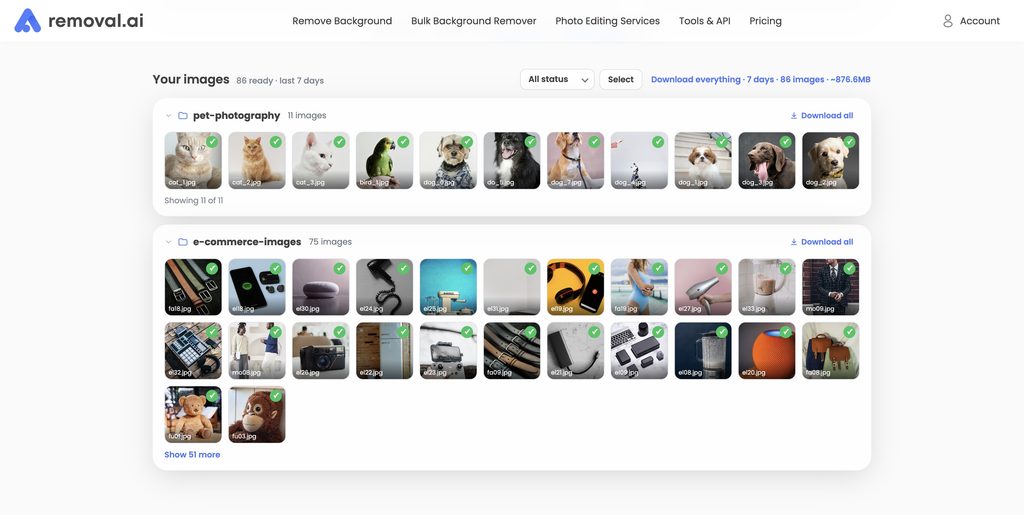
How to Run an Ecommerce Bulk Background Remover Workflow With Removal.AI
A clean, uniform background is usually the first thing a marketplace checks in a main image, and the first thing a shopper’s eye reads past. That makes background removal the natural first step in the pipeline. Process the whole set at once, and every channel version starts from the same clean base.
Removal.AI’s bulk background remover is built for exactly this step. Here’s how to set it up so the batch comes back clean.
Before You Upload: Prep That Keeps Batches Clean
A few minutes of prep saves a lot of sorting later. Group your images by product type and shoot setup, so photos with similar lighting and backgrounds run together. Consistent inputs tend to produce more consistent results.
Next, name your files by SKU and view, using a simple pattern like SKU_view_variant (for example, WB204_front_blue.jpg). That way, every output maps back to the right product without a spreadsheet hunt. Keep the original photos in a separate folder from the processed ones, so a mistake never overwrites your source files.
Finally, decide two things before the first run: the background value you want (pure white is #FFFFFF) and how tightly products should be cropped. Settling these up front means every batch follows the same rule. For more prep ideas, see these tips for batch background removal.
Step-by-Step: Running a Batch in the Online Bulk Background Remover
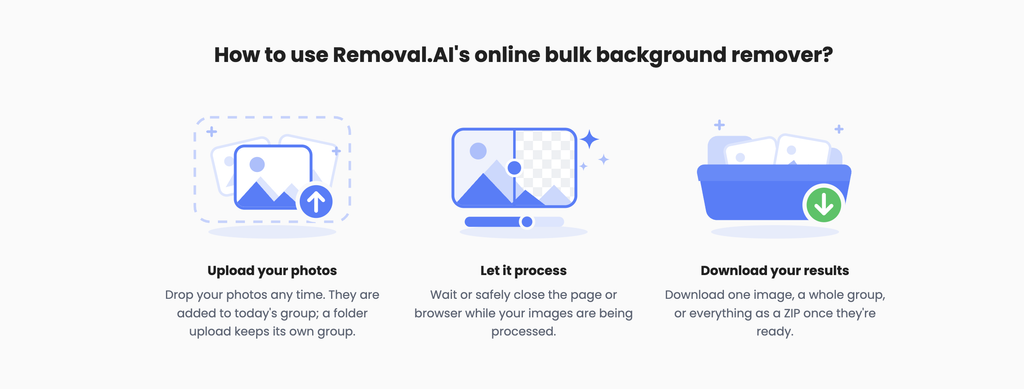
The online tool runs in your browser and needs no installation. Here’s the process from start to finish:
- Log in and confirm your credits. Your available balance shows on the upload page.
- Upload images or a whole folder. It accepts .jpg, .png, and .webp files up to 20 MB each, with up to 100 images and 200 MB per upload. You can run as many uploads as you need.
- Watch the status and estimated-time columns. You can safely close the page while it processes.
- Download your results one at a time or as a full folder.
Pricing is simple. Bulk uploads use a flat 0.5 credit per image, half the usual rate, so the same credits cover twice as many images. If an image fails, its credits are refunded.
As for speed: in Removal.AI’s testing, a full 100-image upload processes in about 10 to 15 minutes. We put that to the test with a mixed catalog, and the results are below.
Alternative: The Desktop App for Big or Recurring Jobs
If you run batches every week, or your drops run into the thousands, the Removal.AI desktop app for Mac and Windows gives you more control. Setup takes a few minutes:
- Download and install the desktop app.
- Log in to your Removal.AI account.
- Add your API token, which you’ll find in your account dashboard on the Removal.AI website. This links the app to your credits.
- Drag in a whole folder or a set of images.
- Set the background color to an exact hex value, such as #FFFFFF for pure white.
- Turn on “Optimize images for Ecommerce.”
- Check “Keep only the object” to crop each image tightly around the product.
With the desktop tool, you can pause and resume long runs, which helps when you’re working through a large catalog in stages. As a rule of thumb, the online tool suits occasional batches, while the desktop app makes more sense for recurring folder-based work or very large drops.
Alternative: When to Automate the Whole Step With the API
Some teams don’t want anyone uploading files at all. If you process images at a high, steady volume, or you want removal to happen automatically inside your store, DAM (digital asset management system), or PIM (product information management system), the Removal.AI API lets your own software send images and receive the results. It needs a developer to set up, but once it’s running, background removal becomes a step nobody has to think about.
We Ran 100 Product Images Through the Bulk Remover and the Desktop App: Here’s What Happened
Most guides tell you to “run a pilot” before trusting a tool with your catalog. We wanted to show what that looks like. So we took 100 product photos that look like a real catalog, not a set of easy studio shots, and ran them through both the online bulk remover and the desktop app.
1. The Test Setup
We took 100 product photos and split them into roughly three groups. These are common e-commerce product photos and are chosen because they range from easy to tricky for any AI background remover.
- Electronics: hard drives, chargers, home appliances, etc.
- Beauty and Fashion: apparel, footwear, bags, cosmetics, etc.
- Products with hair or fur: scarves, plush toys, brushes, models with hair, etc.
File Formats: .jpeg
Average File Size: 1.5MB
Tools Used: Removal.AI’s Online Bulk Background Remover and Desktop App
Desktop App Settings: White Background (#FFFFFF), ‘Optimize images for E-Commerce’ checked
2. What we measured
- Upload time
- Processing time
- Download time
- Credits used (100 × 0.5 = 50)
3. Results and what they tell a catalog manager
The most useful number in this test isn’t the processing time. It’s the hands-on time: how many minutes a person actually spent per 100 images, from upload to approval. In our run, that came to
11 minutes and 14 seconds.
In just a few minutes, you’ll be able to prepare your images fast. Most of your catalog can move straight through the bulk remover with a light review. As for the tricky categories, they go into a separate exception lane from the start, so they don’t hold up everything else.
Of course, depending on the complexity of the images you upload, processing may take longer, but now you know 100 images won’t take even an hour to finish an entire catalog.
What 10–15 Minutes per 100 Images Means for Your Catalog
Once you know how long one batch takes, you can plan an entire launch around it. Here’s how the benchmark scales:
| Workload | Uploads | Approximate processing time |
| 100 images | 1 | 10–15 minutes (about 6–9 seconds per image) |
| 1,000 images | 10 | About 1 hour 40 minutes to 2.5 hours |
| 2,000 images (200 SKUs × 10 images) | 20 | About 3 hours 20 minutes to 5 hours |
The bigger shift is what happens to people’s time. Processing runs on its own, so nobody has to sit and watch it. Compare that with editing by hand: even at a modest 5 minutes per image, 100 images is more than 8 hours of someone’s focused work. At 2,000 images, it’s weeks.
That doesn’t mean editors disappear. Their time moves from cutting out backgrounds to checking results, fixing the hard cases, and getting products live. For a team that’s stretched thin, that’s often the difference between launching on schedule and slipping a week.
What Each ECommerce Channel Expects from You
Fast processing only helps if the output passes review. And every channel reviews the main image (the first photo shoppers see in search) differently.
Main-Image Rules at a Glance
| Channel | Background | Framing | Size | Not allowed |
| Amazon | Pure white (RGB 255,255,255) | Product fills about 85% of the frame | 1000 px+ recommended for zoom | Text, logos, props, extra items |
| Walmart Marketplace | Pure white (255/255/255) | Cropped close, little empty space | High resolution | Watermarks, logos, accessories not included |
| eBay | Not required to be white | Product centered and fully visible | At least 500 px on the longest side | Borders, added text, marketing material, watermarks |
| Etsy | No set color | Leave space for automatic cropping | At least 2,000 px wide and tall recommended | Transparent PNGs (clear areas show as black) |
| Google Merchant Center | Clean, uncluttered | Product fills 75–90% of the image | 1500 × 1500 px+ recommended; 500 × 500 px minimum from January 31, 2027 | Promotional overlays, watermarks, borders |
| Your storefront and social | Your choice | Consistent across the grid | Varies by theme and platform | Nothing enforced, but mismatches look messy |
Rules like these change, sometimes quietly. Always check the official page before a big launch.
Why the Strictest Channel Sets Your Standard
Look across that table, and a pattern stands out. A white, tightly cropped, high-resolution image meets the requirements of Amazon, Walmart, and Google at the same time. The looser channels, like eBay, your own store, and social media, can all be made from that same image.
So instead of preparing each channel separately, build one master to the strictest standard and adapt it downward. There’s one important exception. Etsy doesn’t support transparent PNG files, and any clear areas appear black on the listing. Never send a transparent master to Etsy. Export a flattened JPG with a white background instead.
Rules Change: Build in a Quarterly Check
Channel rules aren’t fixed. Walmart updated its image guidelines in December 2025, and Google will require a 500 × 500 pixel minimum for all products starting January 31, 2027. A quick quarterly check is usually enough to stay ahead.
Set a reminder every three months to open each channel’s image guidelines, compare them against your spec sheet, and update any row that’s changed. It takes about 30 minutes and can save you from a wave of rejected listings. For a deeper look at Amazon specifically, see this guide to removing backgrounds for Amazon product images.
Process Once, Publish Everywhere
Knowing the rules is half of it. The other half is setting up your files so meeting those rules takes minutes, not a new round of edits for every channel.
Create a Transparent and a White Version of Each Photo
For every product photo, export two base files from your batch.
The first is a transparent cutout: the product alone, with no background, saved as a PNG. This is your flexible version for ads, banners, email headers, and social posts, where you’ll want to place the product on different colors or scenes.
The second is a pure white version (#FFFFFF), saved as a JPG. This is your main-image version for marketplaces and your storefront.
Every channel image should come from one of these two masters, never from the raw shoot. That single rule keeps your catalog consistent, because every version traces back to the same approved cutout.
Use this Spec Table per Channel
To make this easier, we’ve put every channel’s rules into one free spec table. It lists what each placement needs, which master to start from, and how to name the file:
| Placement | Start from | Background | Size and shape | Format | File name pattern |
| Amazon main | White master | #FFFFFF | Square, 2000 px+ | JPG | SKU_main |
| Walmart main | White master | #FFFFFF | Square, high resolution | JPG | SKU_main |
| eBay first photo | White master | White or neutral | Square, 1600 px+ | JPG | SKU_ebay |
| Etsy first photo | White master | White, flattened | 2000 px+, landscape or square | JPG | SKU_etsy |
| Google Merchant Center | White master | Clean | Square, 1500 px+ | JPG | SKU_gmc |
| Instagram feed | Transparent master | Brand color or scene | Check current platform guidance | JPG | SKU_ig |
Get the Base Image Approved Once, Then Reuse It for Every Channel
Here’s where the time savings compound. When someone approves the master image, they’re approving the product’s look: the cutout, the color, the edges. Every channel version made from it only needs a quick format check, not a full review.
Picture a 200-SKU seasonal drop with 10 images per product. That’s 2,000 images, or 20 uploads to the bulk remover, which run for about 3 hours 20 minutes to 5 hours with nobody watching. A reviewer approves the masters in batches as they finish. Then the team exports the Amazon, Walmart, Google, and Instagram versions from those same approved files, checking only size, format, and file name. The approval loop runs once per product instead of once per channel.
Catch Rejections Before the Marketplace Does
Even a clean batch needs a quick look before it goes live. A short, consistent check catches most problems while they’re still cheap to fix.
A 10-Minute QC Routine for Every Batch
Start by opening a sample of images at full size, about 10 per batch, and look closely at the edges. Then check that the background is truly pure white (#FFFFFF). An eyedropper tool in any image editor will confirm it.
Next, view the batch at thumbnail size, the way shoppers see a search grid. Uneven crops and products that sit too small in the frame are much easier to spot this way. Finally, confirm each file’s type and size against your spec sheet, and make sure no transparent file is headed to Etsy.
One habit makes this painless: review the last batch while the next one is processing. The 10 to 15 minutes of processing time becomes your QC window.
Route Exceptions Instead of Hiding Them
When an image fails the check, move it to a separate “fix” folder instead of holding up the batch. The rest of the catalog keeps moving, and the hard cases get proper attention.
Those exceptions can be fixed in-house, or sent to Removal.AI’s manual editing service for detailed cleanup. Images with fine hair, see-through fabric, or heavy reflections are good candidates. For a closer look at how to judge results, see how to test the quality of a background remover tool.
Common Rejection Triggers by Channel
Most rejections fall into a handful of predictable patterns:
- Amazon: a background that’s off-white or light gray instead of pure white, a product that fills too little of the frame, or added text and logos.
- Walmart: too much empty space around the product, watermarks or seller logos, or accessories shown that don’t come in the box.
- eBay: added borders, text, or watermarks, or a photo under 500 pixels on the longest side.
- Etsy: a transparent PNG that displays with a black background, or a product cropped off at the edges in thumbnail view.
- Google Merchant Center: promotional text like “Sale” or “Free shipping,” borders, or a product that’s too small in the image.
Bulk Background Removal Questions, Answered
How long does it take to remove backgrounds from 100 product images?
In Removal.AI’s testing, a full 100-image upload to the bulk background remover processes in about 10 to 15 minutes. Times can vary with file size, image complexity, and your connection, and the page shows an estimated time for each upload.
How many images can I upload at once?
The online bulk remover takes up to 100 images and 200 MB per upload, with each file up to 20 MB. There’s no limit on the number of uploads, so larger catalogs simply run in multiple batches.
Can I set an exact pure white (#FFFFFF) background in bulk?
Yes. In the Removal.AI desktop app, you can enter an exact hex color in the background color setting, such as #FFFFFF for pure white. It then applies to every image in the batch.
Does eBay require a white background?
No. eBay’s picture policy doesn’t require a white background, though a white or neutral one is a safe choice. What it does prohibit are added borders, text, marketing material, and watermarks, and photos must be at least 500 pixels on the longest side.
What happens if an image fails during a batch?
You’re charged when images enter the queue, but credits for any image that fails processing are refunded. You can also cancel images that are still waiting in the queue.
Which products need manual touch-ups after bulk removal?
In our test, the group that needed the most touch-ups was the one photographed with less contrast. In general, products with fine hair or fur, see-through fabrics, shiny surfaces, and white items shot on white are the most likely to need a second look.
Standardize Once, Publish Everywhere: Your Next Batch Starts Here
The bottleneck in most e-commerce image work isn’t the camera. It’s the dozen small decisions and approvals that happen after it, repeated for every product and every channel. Adding more people to that loop makes it bigger, not faster.
A repeatable process changes that. Start with a standard background, build two approved masters, and let every channel version come from them. The work that used to take days becomes a batch that runs while you check the last one.
Latest