Removal.AI Bulk Background Remover for E-Commerce: Full Guide
One product photo can turn into a dozen files before it goes live.
If you manage a lot of product images, you know how much work it takes to manage a single listing. A product would often need 8 to 12 images, each resized, checked, and approved again for every channel.
Such work could take hours and days if need be.
So in truth, it isn’t the product shoot that slows teams down. It’s everything that happens after it, and that’s the part you can fix.
In this guide, I will show you how to cut that repetitive work with Removal.AI’s bulk background remover for ecommerce. We tested it on 100 product images and will show you how to integrate it into a step-by-step workflow you can apply to your next batch.
How to Run an Ecommerce Workflow With Removal.AI
Step 1: Organize Your Files
Make it part of your standard operating procedure to organize your product images first. A few minutes of prep will save you a lot of sorting later.
Step 1.1: First, group your images by product type and shoot setup, so photos with similar lighting and backgrounds run together. Consistent inputs tend to produce more consistent results.
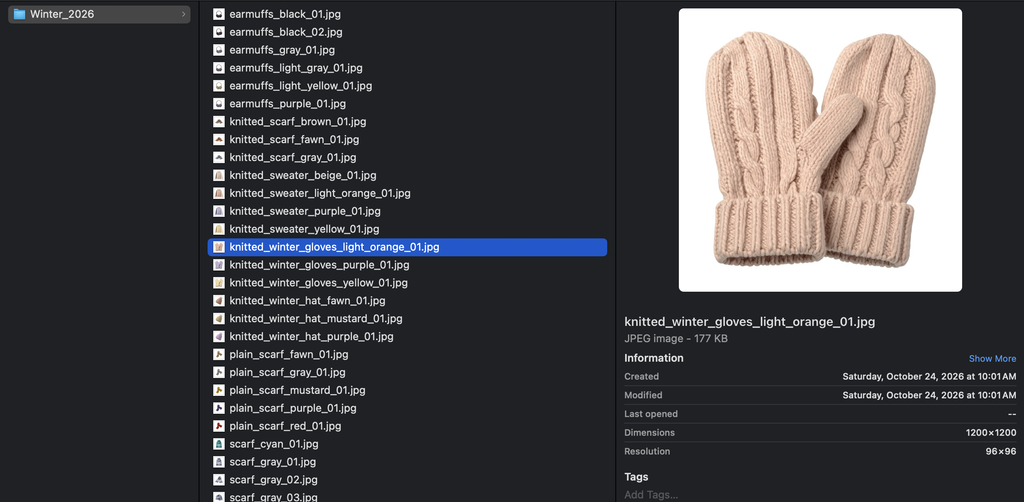
Step 1.2: Name your files by SKU or by their properties (type, color, patterns, etc.). Try using a standard naming convention like:
- SKU + properties: e.g., WC001_Set01_blue
- Product Type + properties: e.g., Winter_Jacket_blue_001
It’s truly up to you how you want to name your products for your convenience. Make it easy to remember and implement for you and your team. That way, every output maps back to the right product without a spreadsheet hunt.
Step 1.3: Always keep the original photos in a separate folder from the processed ones. Trust me, you’ll need this step so you don’t accidentally overwrite any files.
Step 2: Upload your images in Removal.AI’s Bulk Background Remover
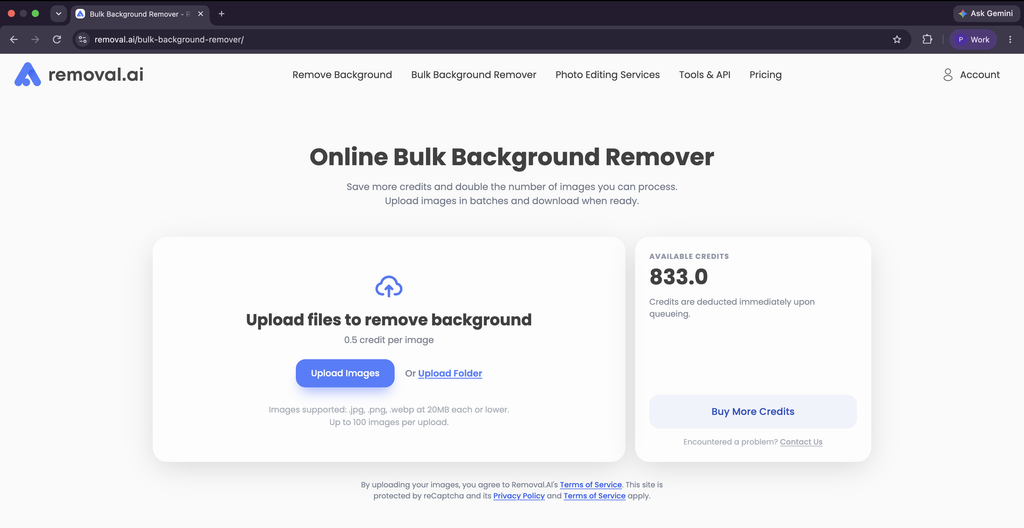
The background remover tool runs in your browser and needs no installation. Here’s the process from start to finish:
- Go to Removal.AI’s Bulk Background Remover.
- Log in, or if you’re a new user, you may sign up. Make sure you have enough credits to use the tool. You’ll find your credits at the right side of the tool’s page.
- Upload your product images or a whole folder. The tool accepts .jpg, .png, and .webp files up to 20 MB each, with up to 100 images and 200 MB per upload. You can run as many uploads as you need.
- Wait for the tool to finish uploading the images before you close the browser. While the bulk background removal is ongoing, you can safely close the page or browser. However, make sure all images are fully uploaded before you do.
- Download your results one at a time or as a full folder.
Pricing is simple. Bulk uploads use a flat 0.5 credit per image, half the usual rate, so the same credits cover twice as many images. If an image fails, don’t worry because your credits will be refunded.
As for speed, we tested 100 images on this tool. Check out the results here.
Alternative 1: Use the Desktop App for High-Volume, Recurring Jobs

If you run batches every week, or your drops run into the thousands, the Removal.AI desktop app for Mac and Windows gives you more control. Setup takes a few minutes:
- Download and install the desktop app.
- Log in to your Removal.AI account.
- Add your API token, which you’ll find in your account dashboard on the Removal.AI website. This links the app to your credits.
- Drag in a whole folder or a set of images.
- Set the background color to an exact hex value, such as #FFFFFF for pure white.
- Turn on “Optimize images for Ecommerce.”
- Check “Keep only the object” to crop each image tightly around the product.
With the desktop tool, you can pause and resume long runs, which helps when you’re working through a large catalog in stages. As a rule of thumb, the online tool suits occasional batches, while the desktop app makes more sense for recurring folder-based work or very large drops. For more tips on using the desktop app, read the Desktop Background Remover App for E-Commerce blog.
Alternative 2: Automate your workflow with Removal.AI’s API
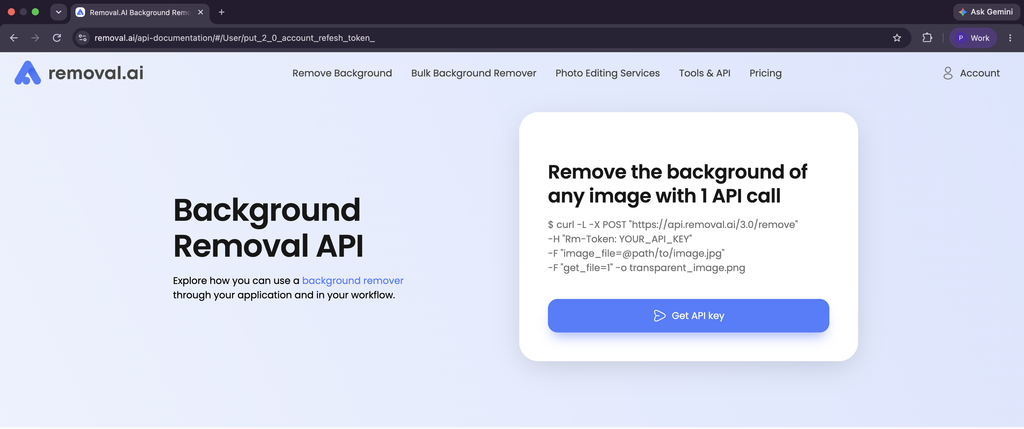
If you process images at a high, steady volume, or you want removal to happen automatically inside your store, DAM (digital asset management system), or PIM (product information management system), the Removal.AI API lets your own software send images and receive the results. It needs a developer to set up, but once it’s running, background removal becomes a step nobody has to think about.
We Ran 100 Product Images Through the Bulk Remover and the Desktop App: Here’s What Happened
The Test Setup
We took 100 product photos and split them into roughly three groups. These are common e-commerce product photos and are chosen because they range from easy to tricky for any AI background remover.
- Electronics: hard drives, chargers, home appliances, etc.
- Beauty and Fashion: apparel, footwear, bags, cosmetics, etc.
- Products with hair or fur: scarves, plush toys, brushes, models with hair, etc.
File Formats: .jpeg
Tools Used: Removal.AI’s Online Bulk Background Remover and Desktop App
Desktop App Settings: White Background (#FFFFFF), ‘Optimize images for E-Commerce’ checked
What We Measured:
- Upload time
- Processing time
- Download time
- Credits used (100 × 0.5 = 50)
Bulk Background Remover 100-Image Test Results
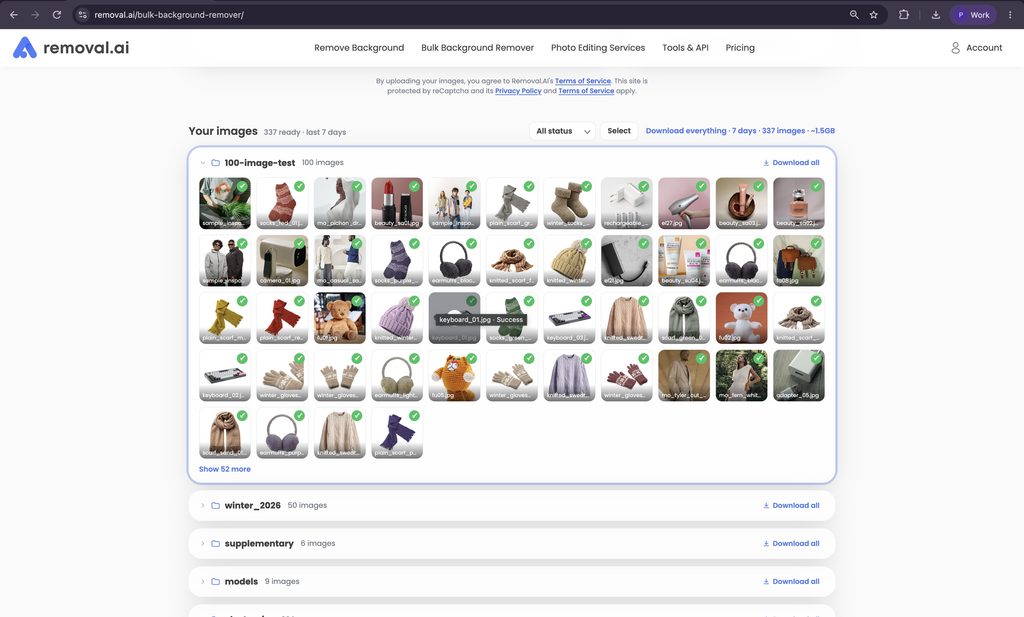
- Upload time: 2 minutes and 38 seconds
- Processing time: 58 seconds
- Download time: 8minutes and 18 seconds
- Credits used: (100 × 0.5 = 50)
Bulk Background Remover Total Processing Time from Upload to Download (100 images): 11 minutes and 54 seconds.
In just a few minutes, you’ll be able to prepare your images fast. Most of your catalog can move straight through the bulk remover with a light review. As for the tricky categories, they go into a separate exception lane from the start, so they don’t hold up everything else.
Of course, depending on the complexity of the images you upload, processing may take longer, but now you know 100 images won’t take even an hour to finish an entire catalog.
How Clean Were the Results?
Speed only matters if the images come out usable. So after each batch, we checked every image for clean edges, leftover background, and missing product details.
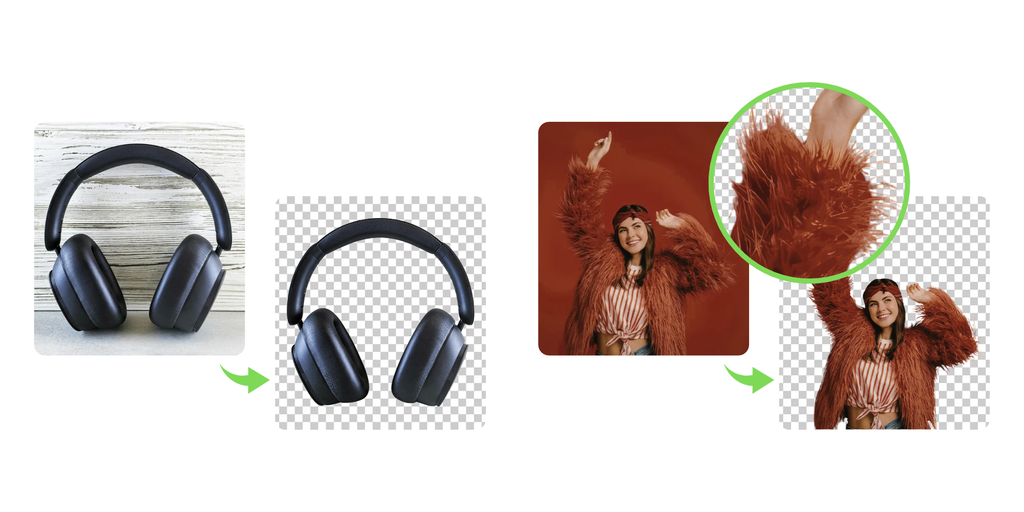
The results were better than we expected for the trickier group. Products with hair and fur, such as scarves, plush toys, and brushes, came back just as clean as the electronics and other items with clear, hard edges. Fine strands stayed intact instead of turning into a blurry outline.
The biggest factor wasn’t the product type. It was contrast. Images where the product stood out clearly from its background came out cleanest, whatever the category. Photos with low contrast, like a white product shot on a white backdrop, were the ones most likely to need a second look.
The takeaway for your next shoot: a little contrast between the product and the backdrop goes a long way. Get that right, and most of your catalog can move straight from the bulk remover to a quick review.
Removal.AI Desktop App 100-Image Test Results
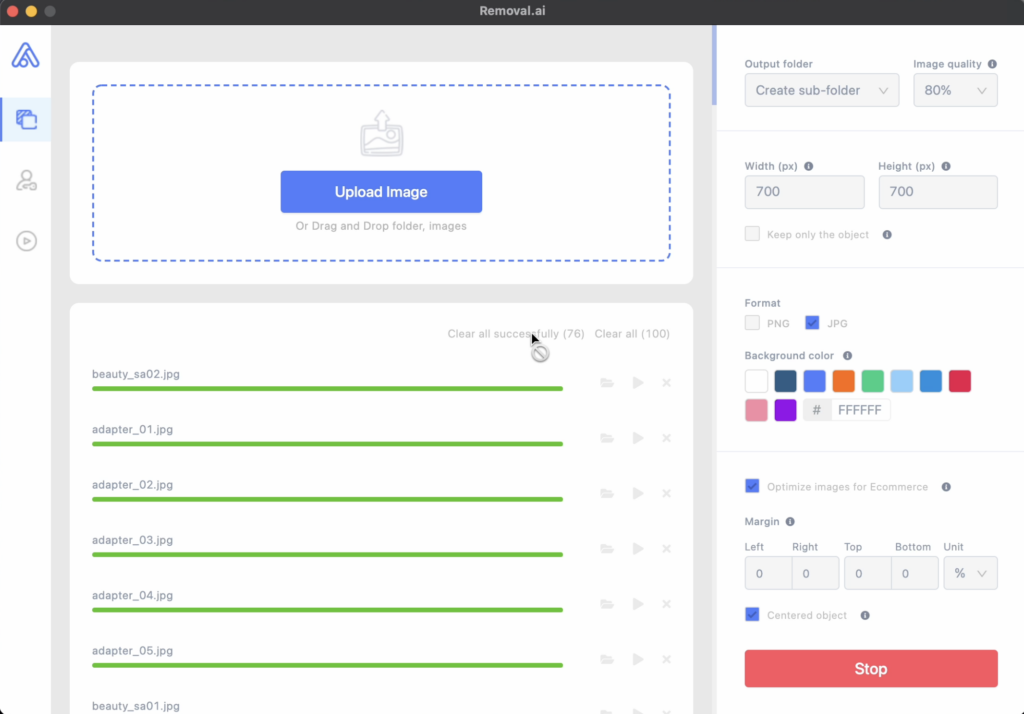
For the desktop app, the processing takes longer, but it offers more flexibility for processing high-volume e-commerce images. With it, you are able to customize and optimize your images, which is perfect for marketplaces with standard image requirements.
Upon uploading your images, they’re automatically processed. This includes background removal, background change, optimization, and downloading the images to a folder.
- Total Processing Time: 31 minutes and 2 seconds
- Credits used: 100
Keep in mind that the two times aren’t measuring quite the same thing. The desktop app’s 31 minutes includes extra steps the online tool doesn’t run in the same pass: setting an exact background color, optimizing each image for e-commerce, and saving everything to a folder. It also uses the standard rate of 1 credit per image, compared with 0.5 credit per image in the bulk background remover.
To sum up, the online bulk background remover was the clear winner for speed and cost. It took all 100 product photos from upload to download in 11 minutes and 54 seconds, and background removal itself took just 58 seconds. It used only 50 credits, at 0.5 credit per image. That’s more than two and a half times faster than the desktop app, at half the credit cost.
For most e-commerce teams, the bulk background remover is the best place to start. You can clear an entire batch in less time than a coffee break, and most of your catalog can go straight from upload to a quick review. Either way, a full 100-image batch finishes well under an hour.
What 10–15 Minutes per 100 Images Means for Your Workload
Once you know how long one batch takes, you can plan an entire launch around it. Here’s how the benchmark scales:
| Workload | Uploads | Approximate processing time |
| 100 images | 1 | 10–15 minutes (about 6–9 seconds per image) |
| 1,000 images | 10 | About 1 hour 40 minutes to 2.5 hours |
| 2,000 images (200 SKUs × 10 images) | 20 | About 3 hours 20 minutes to 5 hours |
In our test, background removal itself took under a minute. Most of the 11 minutes 54 seconds went to uploading and downloading files, so your connection speed will affect your total time more than the tool will.
The bigger change is to your team’s time. While images process, nobody has to do anything; only the upload and the download need you. Compare that with editing by hand: even at a modest 5 minutes per image, 100 images is more than 8 hours of focused work.
That doesn’t mean editors disappear. Their time moves from cutting out backgrounds to checking results, fixing the hard cases, and getting products live. For a team that’s stretched thin, that’s often the difference between launching on schedule and slipping a week.
Bulk Background Removal Questions, Answered
How long does it take to remove backgrounds from 100 product images?
In Removal.AI’s testing, a full 100-image upload to the bulk background remover processes in about 10 to 15 minutes. Times can vary with file size, image complexity, and your connection, and the page shows an estimated time for each upload.
How many images can I upload at once?
The online bulk remover takes up to 100 images and 200 MB per upload, with each file up to 20 MB. There’s no limit on the number of uploads, so larger catalogs simply run in multiple batches.
Can I set an exact pure white (#FFFFFF) background in bulk?
Yes. In the Removal.AI desktop app, you can enter an exact hex color in the background color setting, such as #FFFFFF for pure white. It then applies to every image in the batch.
Should I use the online bulk remover or the desktop app?
Start with the online bulk background remover for most batches. In our test, it was more than two and a half times faster and used half the credits. Switch to the desktop app when you need extra steps in the same run, like an exact background color, e-commerce optimization, and automatic saving to a folder.
What happens if an image fails during a batch?
You’re charged when images enter the queue, but credits for any image that fails processing are refunded. You can also cancel images that are still waiting in the queue.
Which products need manual touch-ups after bulk removal?
In our test, product type mattered less than contrast. Items with hair and fur came out as clean as products with hard edges. The images most likely to need a second look were low-contrast shots, such as white products photographed on a white background. Shooting against a backdrop that contrasts with your product helps avoid most touch-ups.
Standardize Once, Publish Everywhere: Your Next Batch Starts Here
The bottleneck in most e-commerce image work isn’t the camera. It’s the repeat work that happens after the shoot, multiplied across every product and every channel. Adding more people to that loop makes it bigger, not faster.
A repeatable process changes that. Organize your files, run them through the bulk background remover, and review the results in one pass. In our test, that took 100 product photos from upload to download in under 12 minutes.
Ready to see what your own numbers look like? Pick 100 photos from your catalog and run them through Removal.AI’s bulk background remover today.
Latest