Best Online Video Editor Tools: Top Recommendations
The best online video editor is simply the right one for your team — not the one with the longest feature list.
A solo content creator, a three-person marketing team, and an enterprise brand don’t exactly need the same tool. You pick the wrong one and you’ll either pay for features you’ll never even touch or hit a wall once your workflow gets slightly more complex. A beginner who needs watermark-free exports has completely different needs from a marketing team producing thirty social clips a month or a business that wants AI to handle scripting, voiceover, and assembly with minimal human input.
The recommended editors below are matched to the situations where they actually work best. Read through, find your situation, and start there.
How to Choose the Right Online Video Editor
Before jumping into the list, it helps to know what you’re optimizing for. Not every tool is built for every use case. A few things worth considering:
- Your output format. Short-form TikTok clips demand different tools than long-form YouTube content or business explainers.
- Your editing experience. Some tools are template-first (great for beginners), others give you a full timeline (better for experienced editors).
- Your budget. Most tools here have a genuinely usable free tier — though watermarks and export limits vary widely.
- AI features. In 2026, AI-assisted editing, auto-captions, text-to-video, and background removal have gone from nice-to-have to standard. The tools that have embraced AI are meaningfully faster to use.
Top Recommended Online Video Editors
1. CapCut — Best for Solo Creators and Social-First Teams
Built by ByteDance (TikTok’s parent company), CapCut has become the default editor for short-form video, and it earns that position. It is engineered around the formats that dominate social feeds — Reels, Shorts, TikToks — and the free tier reflects that generosity: full timeline editing, keyframe animation, chroma key, multi-track audio, and a solid set of AI tools that would cost extra almost anywhere else.
Capcut also has auto-captions, background removal, smart cutout, and AI-powered effects that all come at no charge. It has templates that refresh constantly and skew toward trending formats. For a solo creator or a small team on a tight schedule, few tools keep pace with CapCut’s output speed at this price.
One thing worth knowing, though, is that CapCut is a ByteDance product, which has drawn scrutiny in some markets over data privacy. If that’s a concern for your organization, weigh it before committing.
Pricing: Free (most features, no watermark); Standard at $9.99/month; Pro at $19.99/month (4K export, advanced AI tools).
Best for: Solo content creators, social media managers, small teams producing Reels, TikToks, or YouTube Shorts on a regular schedule.
2. Clipchamp — Best for Beginners Who Need Clean Exports Fast
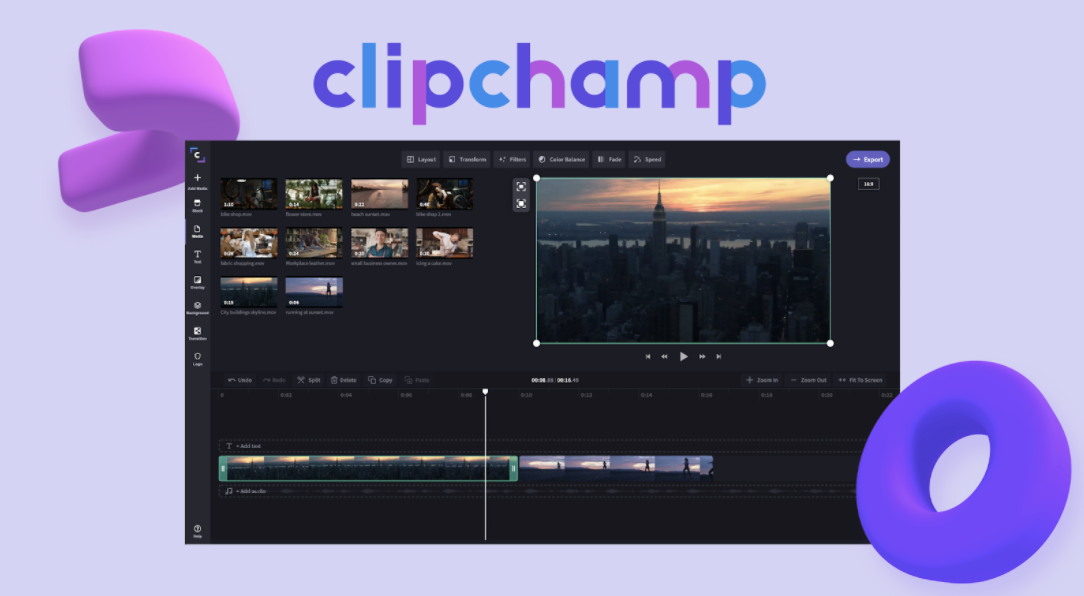
Clipchamp is an online video editor that’s easy to use but doesn’t skimp on features. It’s accessible through Google Chrome or Microsoft Edge Chromium browsers. This means you don’t have to download and install it to access all of its advanced video editing tools and to save or export your edited clips and footage.
Clipchamp aims to make it simple for both newbies and pros to edit videos. With its simple interface and clearly labeled features, you can trim, cut, merge, add overlays, control playback speed, convert text to speech, and even create a green screen effect to your videos. You can also record your computer screen or your facecam with just a click of a button.
Unlike other video editors, Clipchamp provides unlimited 480p exports without a watermark. It also offers ready-to-use customizable templates, a 1M+ stock library, and integrations with YouTube, TikTok, Facebook, Zoom, Google Drive, and more. This in-browser video editor is free to use, but you can upgrade to paid plans starting at only $9 per month to gain access to more awesome features.
Pricing: Free (unlimited 1080p, no watermark); paid plans add premium stock assets and advanced features.
Best for: Beginners, Windows users, and anyone who needs watermark-free exports without paying a monthly fee.
3. InVideo AI — Best for Teams Producing Video at Volume
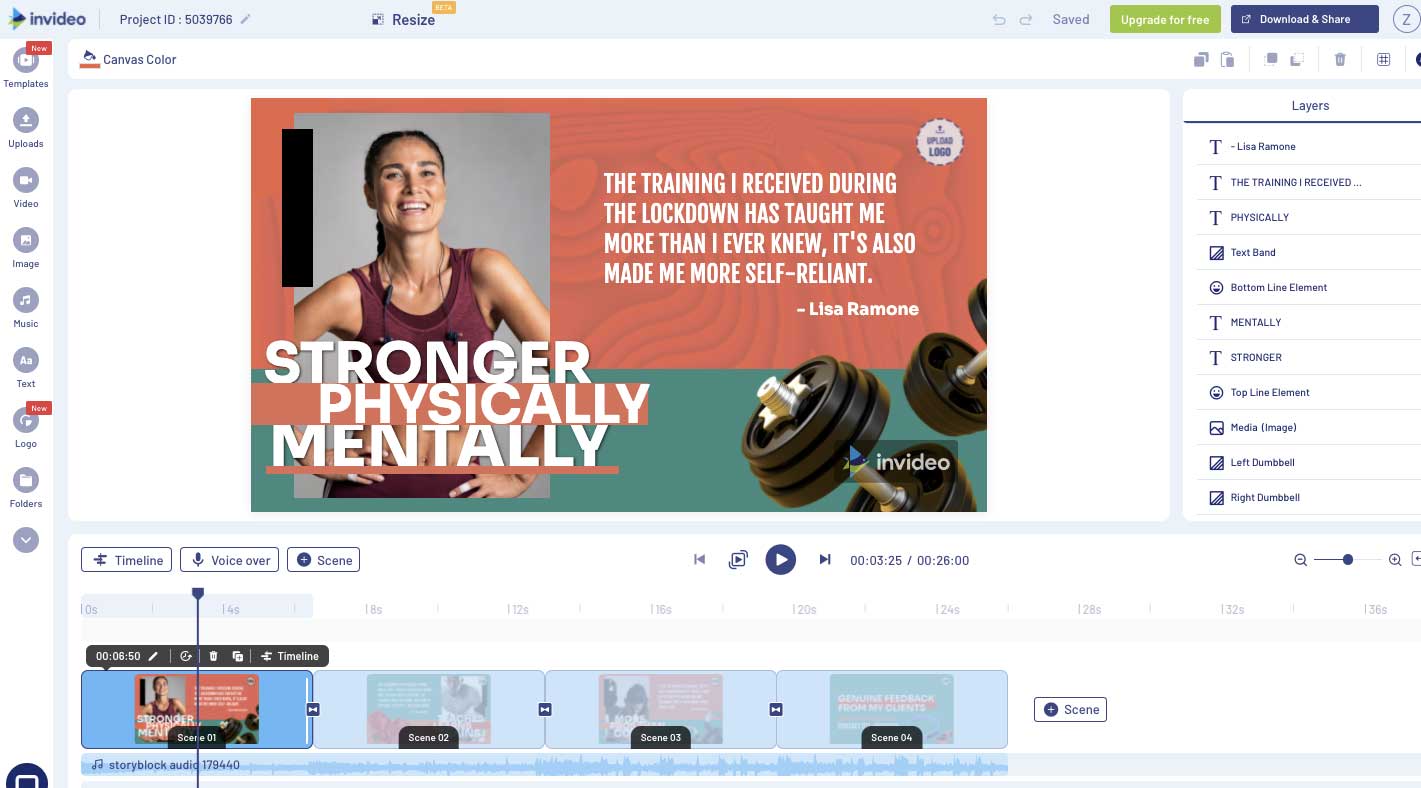
InVideo has changed significantly since its early days as a template library. It now runs as two parallel products: InVideo Studio, a traditional drag-and-drop editor with 5,000+ templates, and InVideo AI, a prompt-first generation platform. Type a topic or paste a script and the AI handles footage selection, voiceover, captions, and assembly — start to finish.
What separates InVideo from other AI tools in 2026 is model access. It’s currently the only platform bundling both OpenAI’s Sora 2 and Google’s VEO 3.1 within a single subscription. Accessing those models individually costs $200–$250/month. InVideo packages both from $25/month — a meaningful difference for content teams producing faceless videos, explainers, or product content at volume.
The free tier caps at 10 AI-generated videos per month, limits exports to 720p, and adds a watermark. Fine for testing the platform. For anything going out publicly, you’ll need a paid plan.
Pricing: Free (10 videos/month, watermarked, 720p); Plus at $25/month (50 AI minutes, 1080p, watermark-free); Max at ~$48/month (unlimited generation, 4K).
Best for: Content teams and marketers producing AI-generated or template-based video consistently — especially at volume.
4. HeyGen – Best for Businesses That Need Talking-Head Videos Without Filming
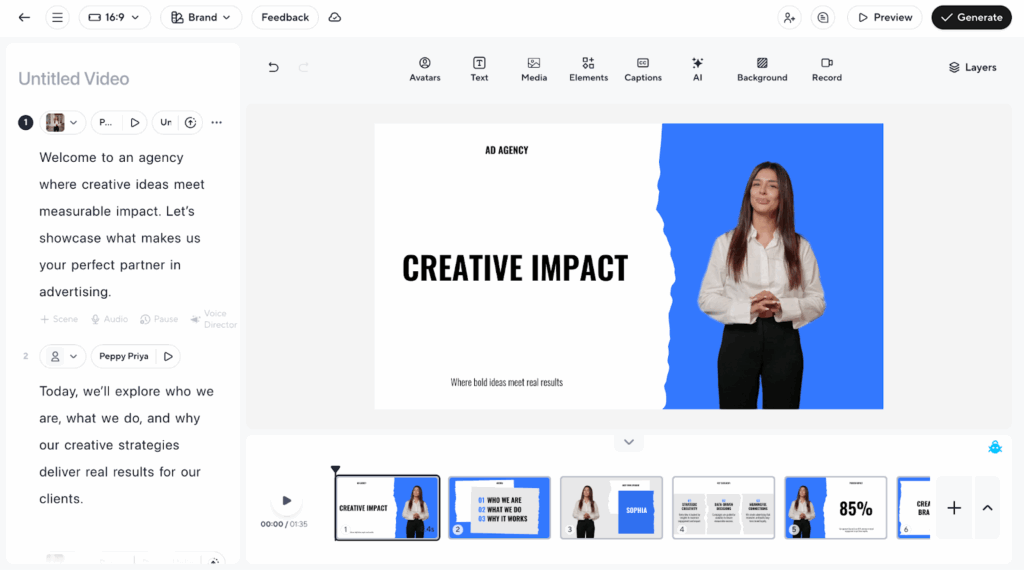
HeyGen is an AI video generator and editor that makes it easy for anyone to produce professional-quality videos featuring realistic virtual presenters. Unlike traditional editors that require manual footage editing, HeyGen allows you to generate videos simply by typing a script or uploading your own audio. The platform then brings your content to life using highly realistic AI avatars that speak in multiple languages with accurate lip-syncing.
HeyGen offers an intuitive web-based interface where you can customize avatars, add backgrounds, overlays, and subtitles, and even translate videos automatically for global audiences. It’s ideal for marketing, training, and explainer videos where speed and consistency matter more than complex timeline editing.
The free version lets you explore basic AI avatar and text-to-video features, while paid plans unlock higher-quality exports, additional avatars, and advanced editing tools. If you’re looking to create professional talking-head videos quickly without needing a camera, microphone, or editing experience, HeyGen is a solid modern alternative to traditional online video editors.
Pricing: Free to explore; paid plans from approximately $24/month — VERIFY current pricing at heygen.com/pricing.
Best for: Businesses and training teams that need regular talking-head or explainer videos without filming equipment or production staff.
5. WeVideo
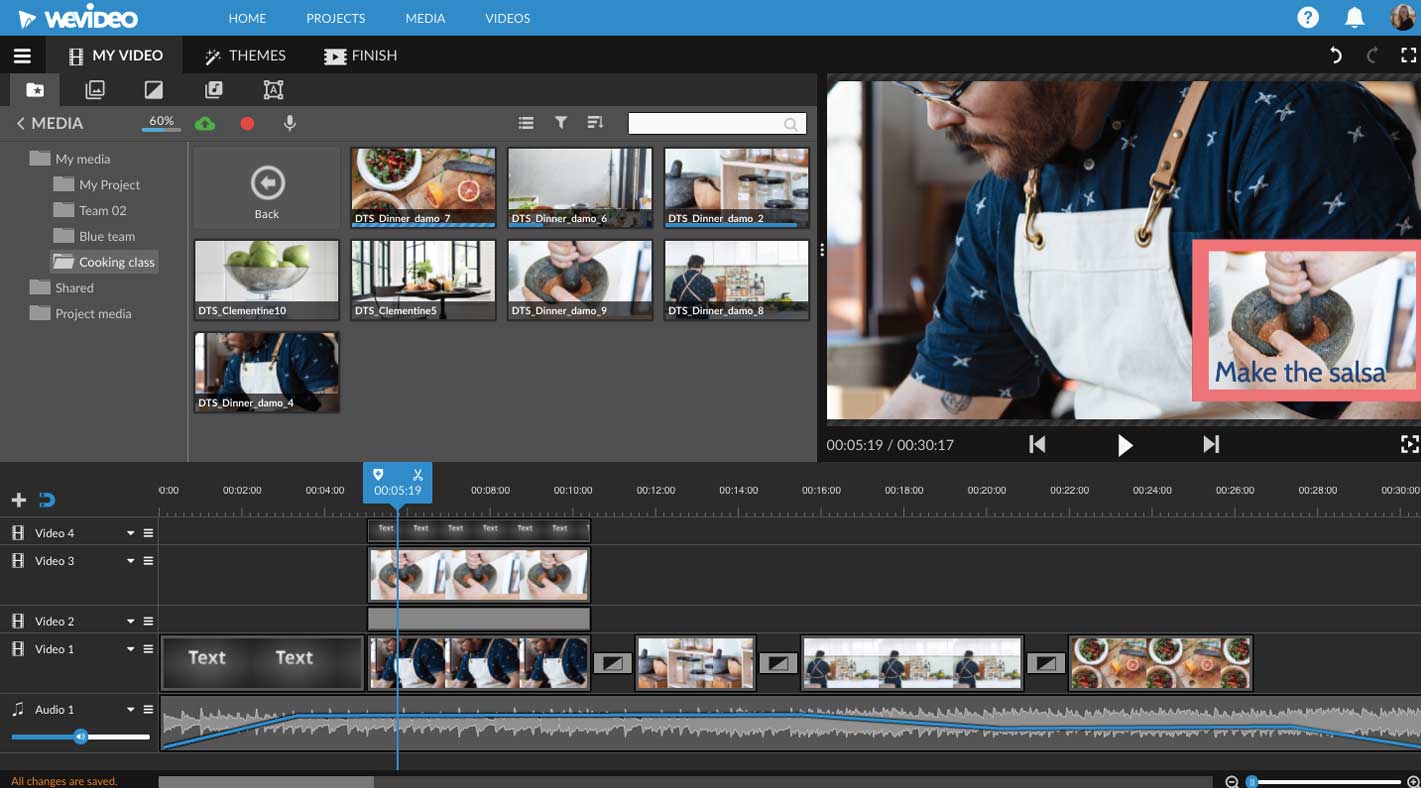
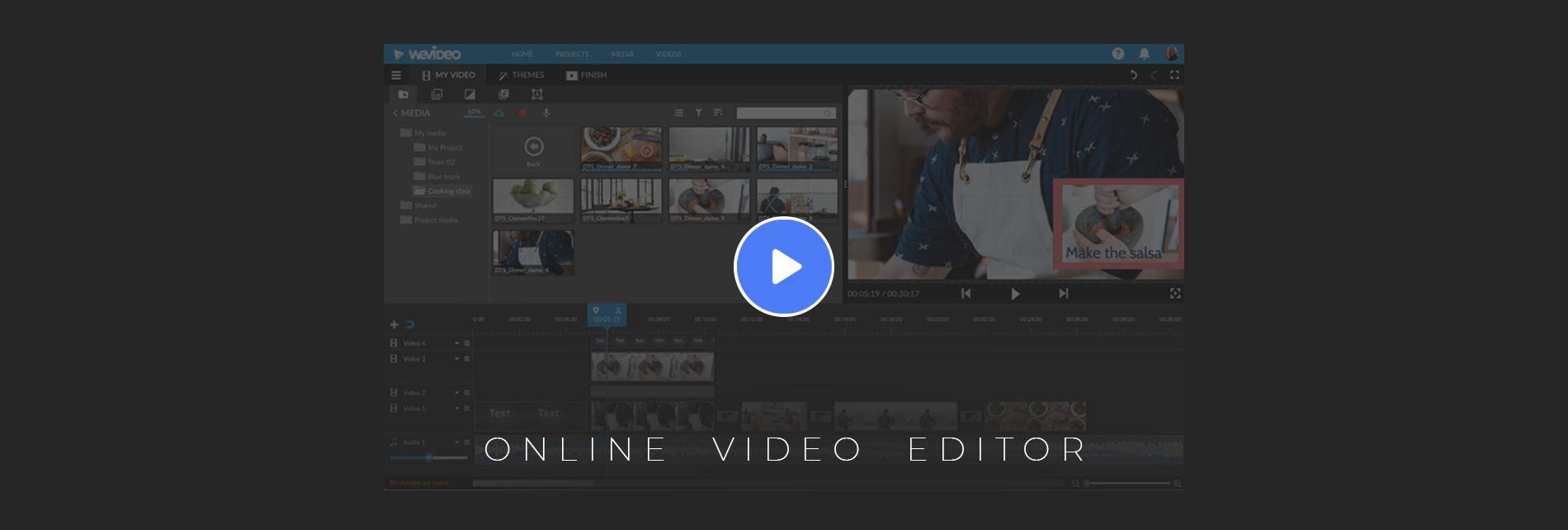
WeVideo is one of the finest cloud-based video editing tools that let you view and edit your videos while on the go. For professional projects, WeVideo allows multiple members of the team to collaborate on a video. WeVideo’s stock library has over a million videos, photos and music and gives you unlimited cloud storage.
For those who are looking to add animated texts to their videos or use the green screen feature, WeVideo is a perfect choice. It is one of the few tools that let you export the edited videos in 4K resolution.
If you are a newbie to video editing, adding your logo with the branded template feature of WeVideo will allow you to come off as professional. Although WeVideo does have a free tool, to use the advanced features of this platform, you need to go for a paid plan that is available starting at $4.99 per month.
6. OpenShot – Best Free Desktop Editor for Budget-Conscious Teams
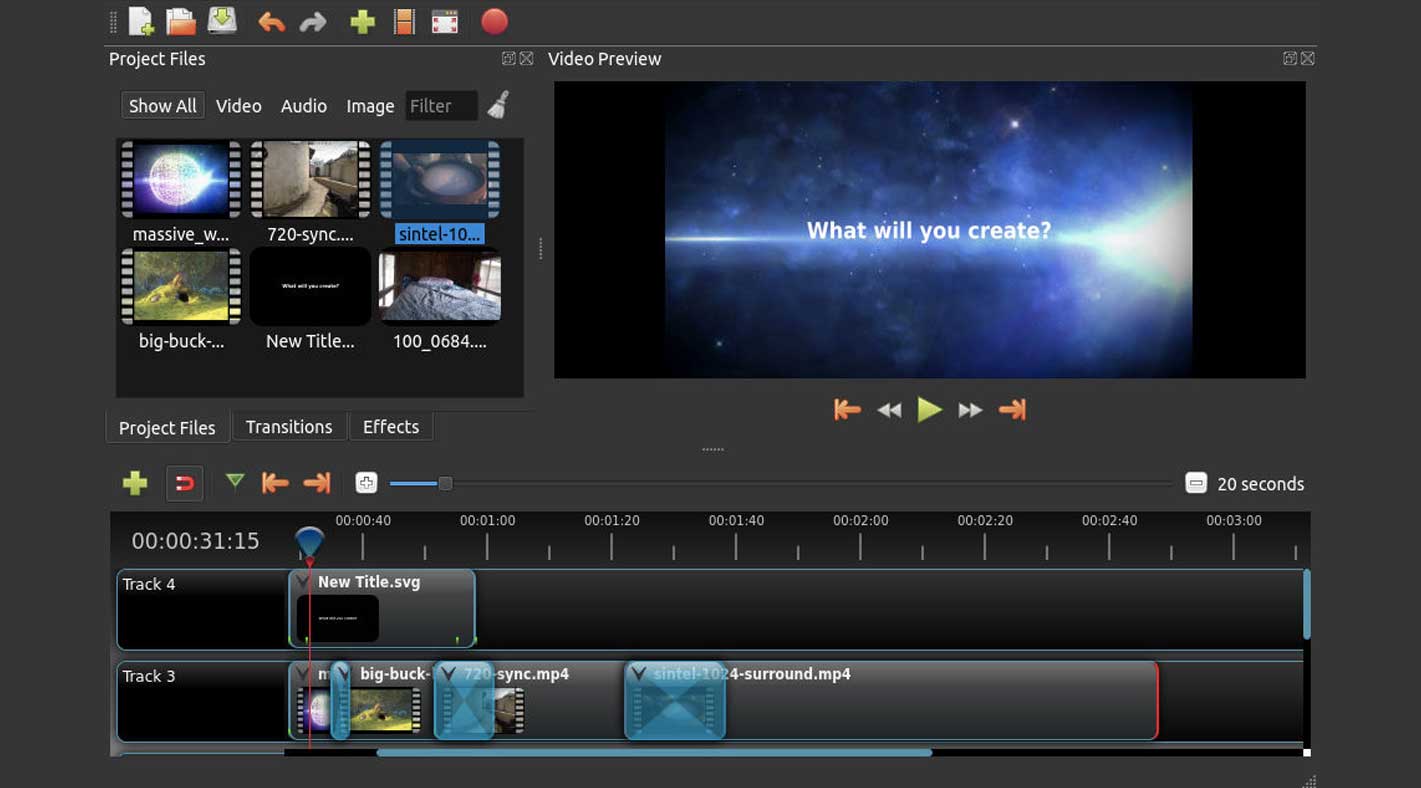
OpenShot is a simple video editing tool that is targeted at beginners and does not offer advanced editing features. It has some of the best options in customizing templates or tiles, and you can trim, snap, and rotate the clips. OpenShot has several layers that let you comfortably edit the background, watermarks, audio tracks, etc.
The drag-and-drop feature of OpenShot helps to simplify editing when dealing with multiple video or audio clips. OpenShot lets you get your video in greyscale, gamma hue, and adjust the brightness. It is a free tool, and we recommend it for brands operating with a limited digital marketing budget.
Pricing: Free, open-source — no watermark, no export limits.
Best for: Budget-conscious teams and beginners who want full desktop editing control without a monthly fee.
7. Blender – Best for Teams Investing in Animation and Motion Graphics
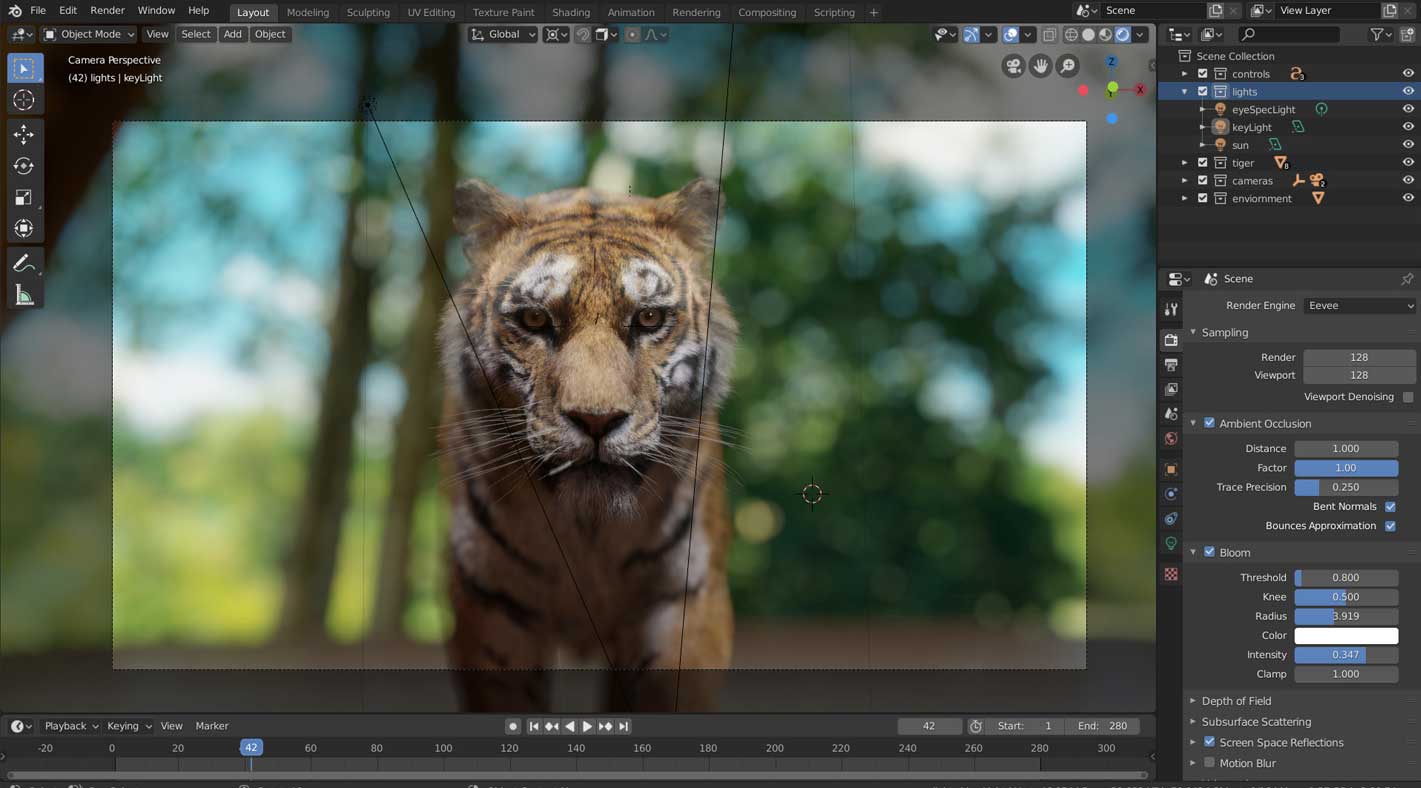
Blender is an open-source tool that you can use to render 3D videos and create studio-quality animations. The path tracer engine allows you to render animated objects in a realistic feature. While the interface is simple to use, you can use Blender to code game logic and create gaming animation videos.
Blender is available for Windows, Linux, and Mac systems. It has a huge library of vignettes, images, and visual effects. The tool is available for free, and users can create realistic kinematics with its advanced animation features. Blender is an ideal tool for businesses that have a younger target audience and wish to promote their product through animations.
Pricing: Free, open-source.
Best for: Brands and creative teams investing in 3D animation, studio-quality motion graphics, or animated content for design-forward audiences.
8. Shotcut – Best for Editors Who Need Format Flexibility and Audio Control
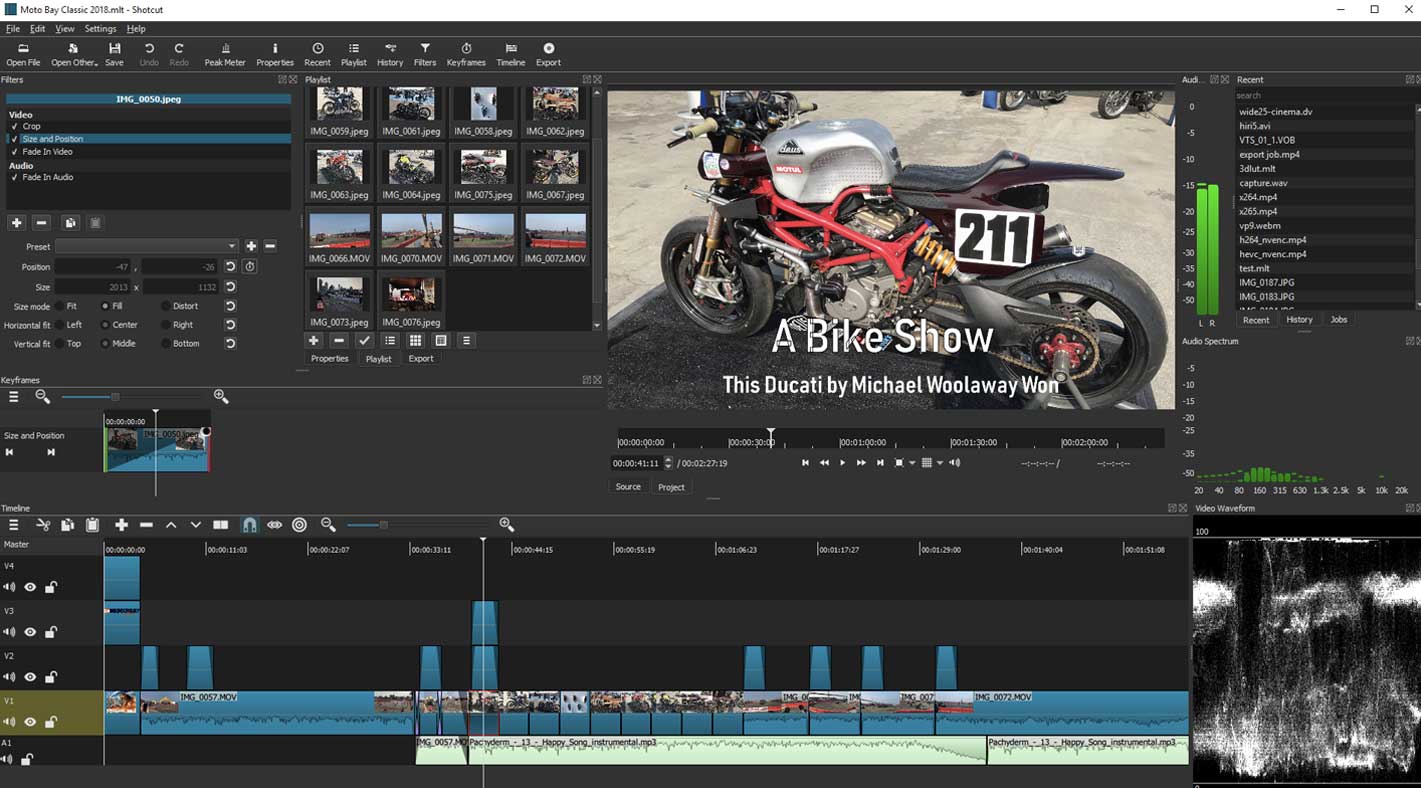
Shotcut is a free video editing tool that gives you a multi-format timeline. That way, you can adjust the resolution and frame rate of your project. That way, you can ensure consistent footage throughout the video. Shotcut is an open-source tool that supports the latest audio and video formats through the FFmpeg format.
The interface of Shotcut is simple to use, and there are multiple tutorials to guide you. White balance, bass and treble, compressor, and bandpass filter are some of the advanced features of this tool. Shotcut allows you the luxury of directly importing the video clips to your project instead of using a media library.
Pricing: Free, open-source.
Best for: Technically inclined editors and small production teams who need format flexibility, audio control, and desktop-level editing without a subscription.
9. Wave.video – Best for Multi-Channel Marketing Content
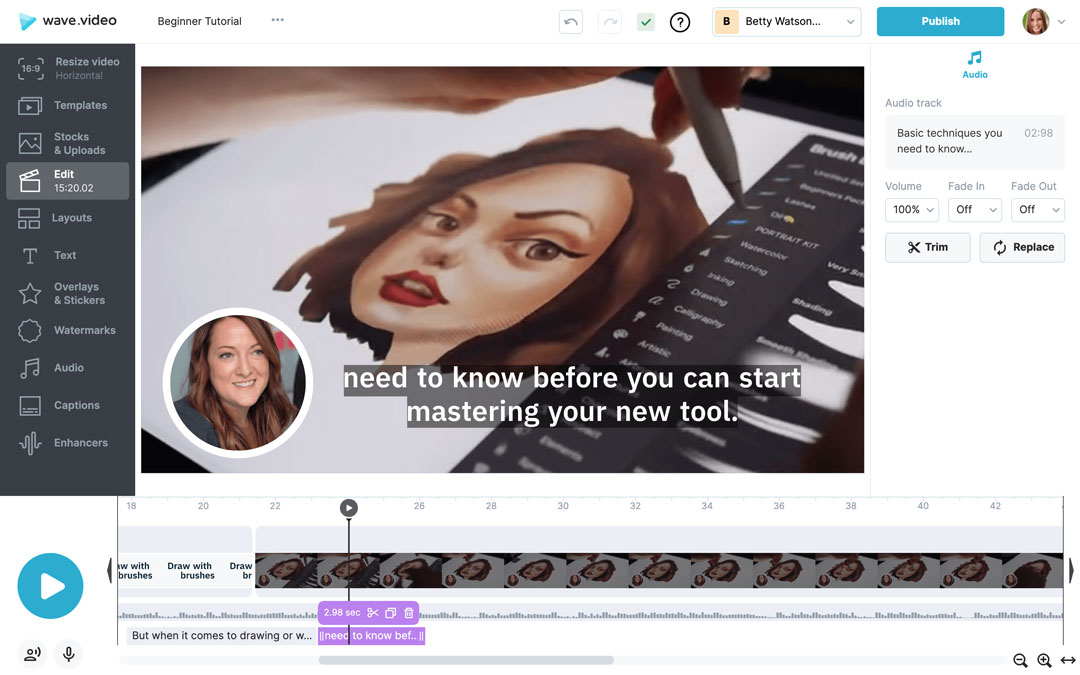
Wave.video is the easiest online video editor for you to start making videos even with no design background. Using the vast collection of over 1000 pre-designed templates, you will make professional-looking videos for any business purpose: social media, email, blog, or website.
Besides being very intuitive, Wave.video offers you the most comprehensive set of editing tools, including auto-captions, text animations, AI-powered text-to-video feature, inbuilt voice-over and watermark, customizable layouts, and so much more! You will be able to upload your footage or pick anything you like from the most extensive collection of over 200M stock videos, images, and tunes.
You can download your creatives in MP4, GIF, and Jpeg formats to get any visual you need to skyrocket your marketing. With every Wave.video plan, you’ll get free video hosting to embed your videos to your website.
Pricing: Free plan available; Streamer plan from $16/month.
Best for: Marketers and small businesses producing regular content across social, email, and web who need format flexibility.
Choosing the Right Online Video Editing Software
Studies show that the presence of an e-commerce video can boost the conversion rate of a landing page by 144%. In such a situation, investing your efforts in choosing the ideal video editing tool is a crucial step in your video-making journey. As you look to get the maximum ROI of your videos, feel free to choose any tool from the list above and set out on the path of quality video marketing.
All the software is compatible to run on both Windows & IOS operating systems. But it’s better to check its available features so that you can give a professional touch to a raw video. The interface needs to be easy to navigate and choose for editing the video online easily. Well-edited videos are engaging marketing content to grab the attention of the target group.
The more you pay attention to product details, the better the video clarity. Beginners should have the correct choice of software that can make the editing task an easy one.
Don’t overlook your thumbnail while you’re at it. A cluttered or mismatched background is one of the fastest ways to lose a click before the video even starts. Running your thumbnail image through a background remover first makes it easy to drop in a solid color, brand background, or something that matches your channel’s look.
Your Turn…
Without making it complex, it is better to pick the right free online video editing tool. The simple interface and features are easy to use and give the much-desired professional touch to the video.
If planning to use the video on the Windows operating system or on IOS, it is the list mentioned above to give you a better idea of choosing to edit videos online.
Quick Summary:
What is the best online video editor for beginners?
Clipchamp is the easiest starting point for most beginners. The interface is clearly labeled, the workflow is intuitive, and it exports in 1080p with no watermark on the free plan — which removes one of the most common frustrations with free tools.
Which online video editor is best for small marketing teams?
It depends on what the team produces most. For social-first output at volume, CapCut is faster. For teams that need to collaborate on the same project without emailing files, WeVideo is the most practical option. The right answer usually comes down to whether your team prioritizes brand consistency, output speed, or collaboration.
Can I edit videos online without downloading any software?
Yes. Clipchamp, CapCut (browser version), InVideo, WeVideo, and Wave.video all run entirely in the browser with no installation required. The tradeoff is that browser-based editors can slow down with large files and depend on a stable internet connection throughout the editing and export process. If you’re working with longer, heavier footage regularly, a desktop editor like OpenShot or Shotcut may be more reliable.
Which free online video editors don’t add a watermark?
Clipchamp exports in 1080p with no watermark on its free plan. CapCut also skips the watermark on most content in its free tier. OpenShot and Shotcut are fully watermark-free but require a desktop install. InVideo and WeVideo add a watermark on free exports — you’ll need a paid plan for clean output on those platforms.
Is an AI video editor worth it for a small business?
For most small businesses, yes — particularly for repetitive content types like product explainers, social clips, and training videos. Tools like InVideo AI and HeyGen can produce a polished video from a text prompt in minutes, without filming, recording, or timeline editing. The output won’t match a professional production, but for everyday marketing content, the time savings are real enough to matter.
What’s the difference between a browser-based and desktop video editor?
Browser-based editors (Clipchamp, CapCut, Canva, InVideo) run in your browser, require no installation, and are generally easier to pick up. Desktop editors (OpenShot, Shotcut, Blender) install on your machine, handle larger files more reliably, and give you more control over format, audio, and effects. For most teams producing social or marketing content, a browser-based tool is sufficient. Desktop editors start to make more sense when your workflow involves longer timelines, complex audio, or specific format requirements.
Latest